Guide
Export to Excel
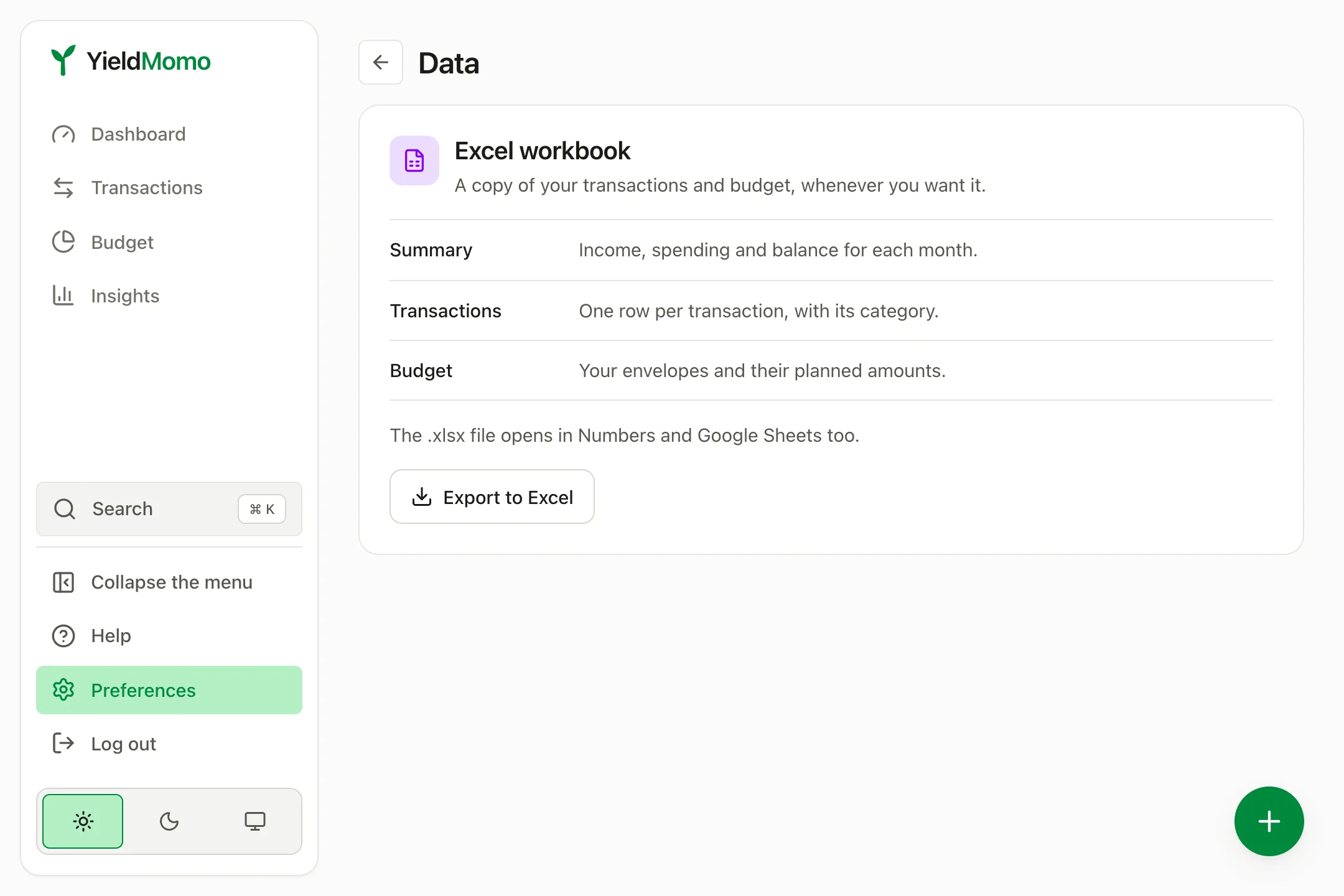
A copy of your transactions and budget, whenever you want it. A workbook with three sheets, which opens in Excel, Numbers and Google Sheets.
- On the web
- 3 steps
- 1 min
Step 1. Open Data
Preferences › Data, then “Export to Excel”.
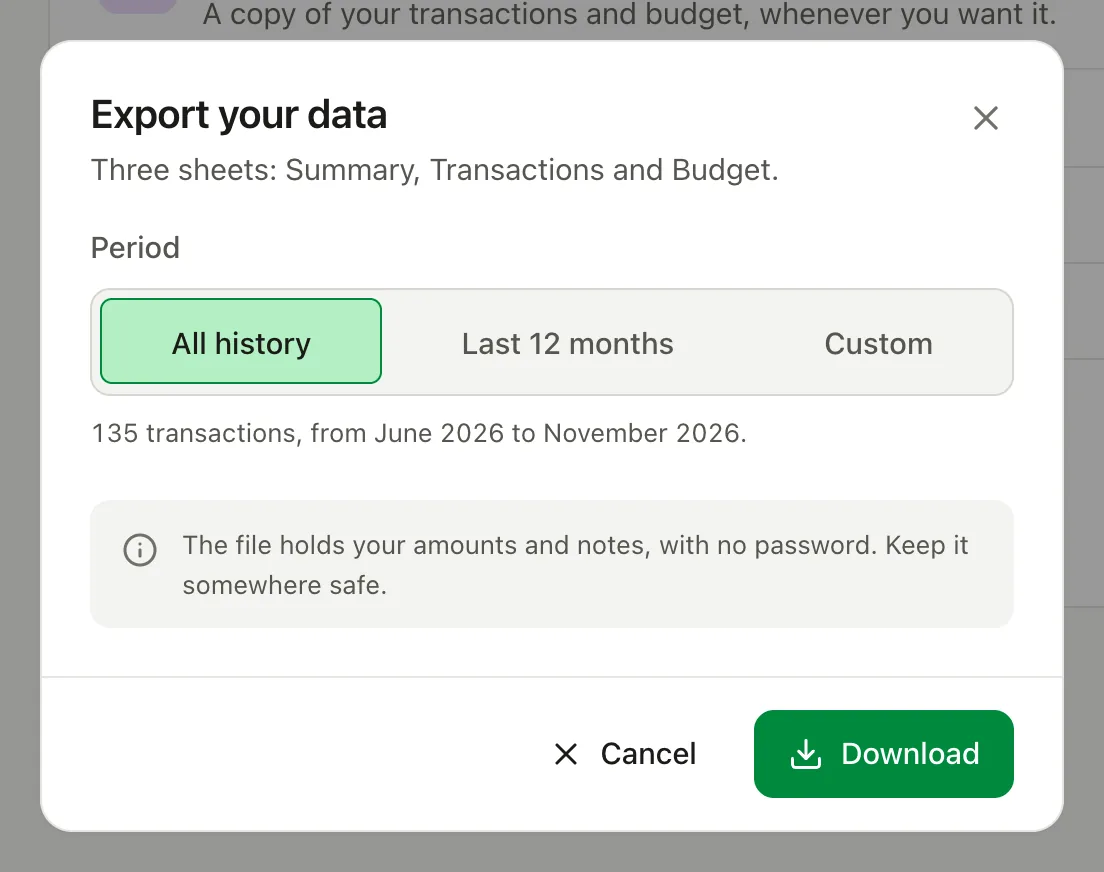
Step 2. Choose the period
“All history”, “Last 12 months”, or “Custom”, from one month to another. Before creating the file, the preview shows the number of transactions and the months covered. A period with no transactions still gives you a workbook: your budget, a summary at zero and an empty Transactions sheet.
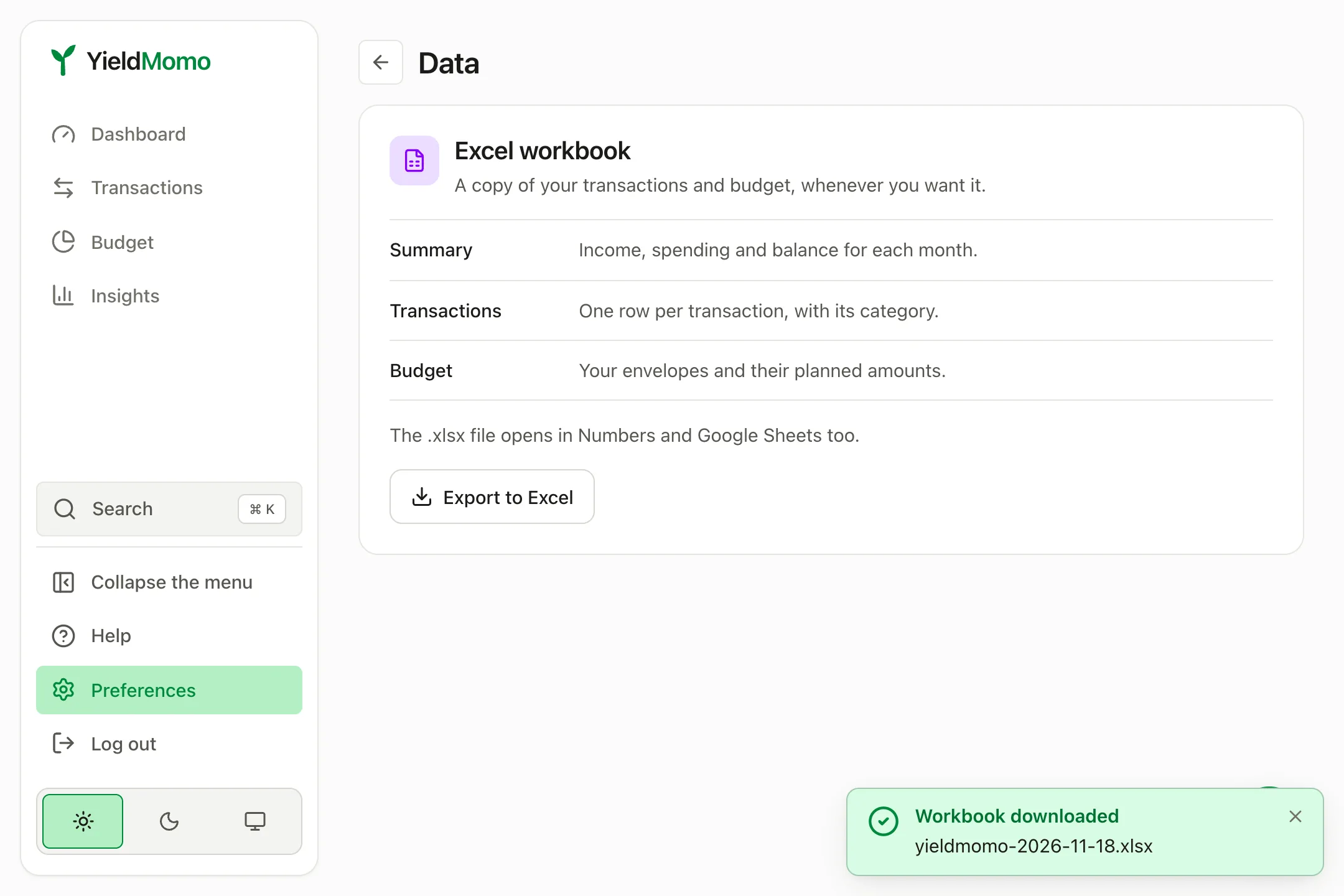
Step 3. Get the file
“Download”. The file lands in your downloads folder, and the message “Workbook downloaded” confirms it.
What the workbook contains
- Summary: one row per month, with income, expenses and balance. These are formulas that add up the Transactions sheet: correct an amount, and the summary follows.
- Transactions: one row per transaction and per month, with the date, the month, the description, the category, the group, the type, the amount, the recurrence and “Counts in the month”. So a monthly transaction appears once per month. “No” marks a transaction excluded from the month: its row is greyed out and the summary doesn’t count it.
- Budget: your envelopes and their current planned amount.
Good to know
The file holds your amounts and notes, with no password. Keep it somewhere safe.
Exporting needs a connection: we build the workbook on our servers, without keeping it.
A workbook holds 10,000 rows at most. Beyond that, choose a shorter period.
The workbook is in the language chosen under Account › Language (with “Device”, the language of the device you export from). Export isn’t limited to MAX.