Guide
Create your budget
The first flow, right after you create your account. Four steps, and Automatic mode already suggests an amount for each category. You can change everything afterwards.
- On the web
- 4 steps
- 3 min
Step 1. Get to know the app
Four screens introduce YieldMomo. “Next” moves to the next screen, and becomes “Start” on the last one. “Skip” skips the screens, not the setup: “Start” and “Skip” both lead to your income.
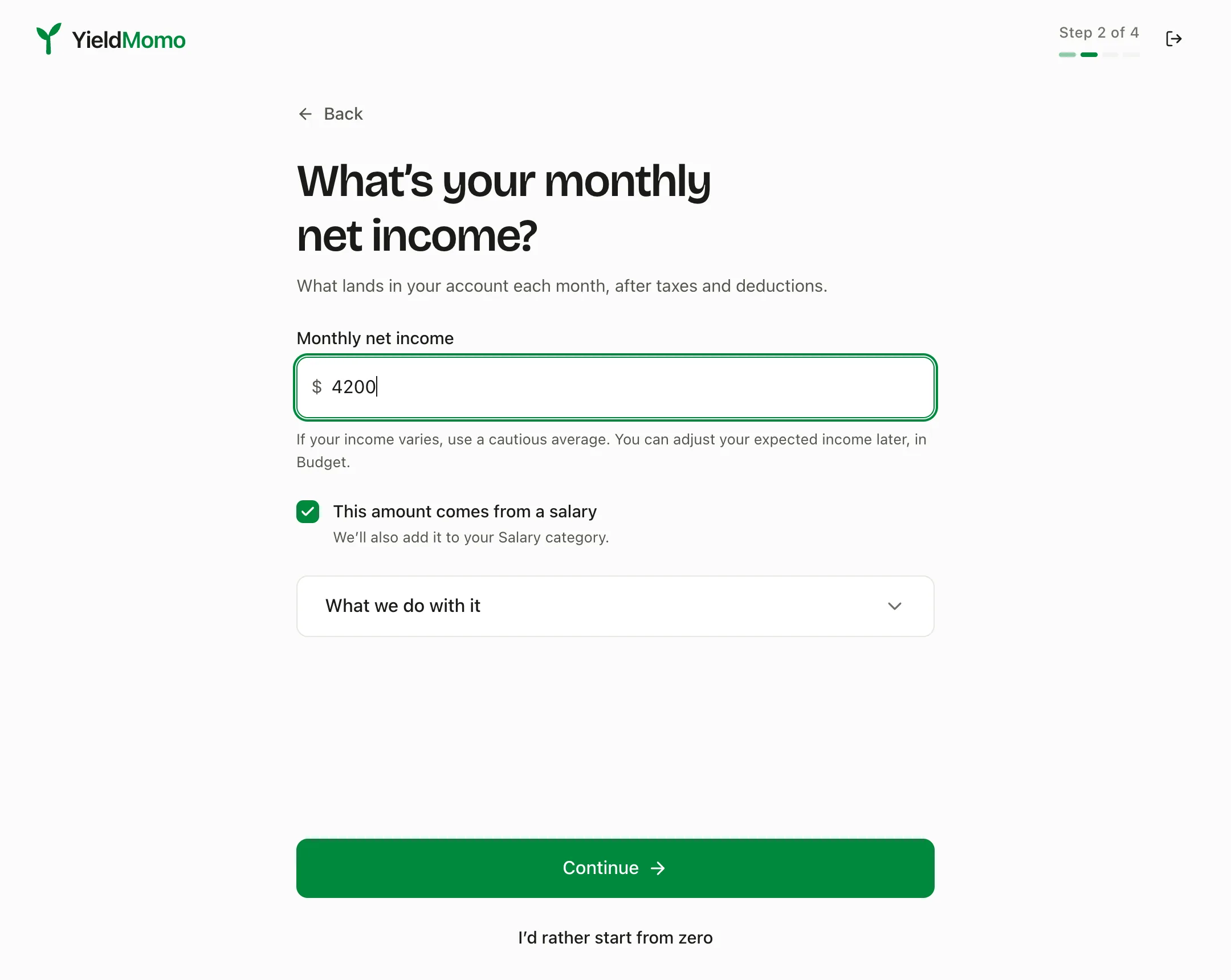
Step 2. Enter your monthly net income
What lands in your account each month, after taxes and deductions. If your income varies, use a cautious average. The “This amount comes from a salary” box is checked by default: your income then becomes the monthly goal of your Salary category. No transaction is created.
- Prefer to set everything yourself? “I’d rather start from zero” clears your income and takes you to the last step, in Manual mode: every category will start at zero.
- This figure stays in your account. We only use it for your budget.
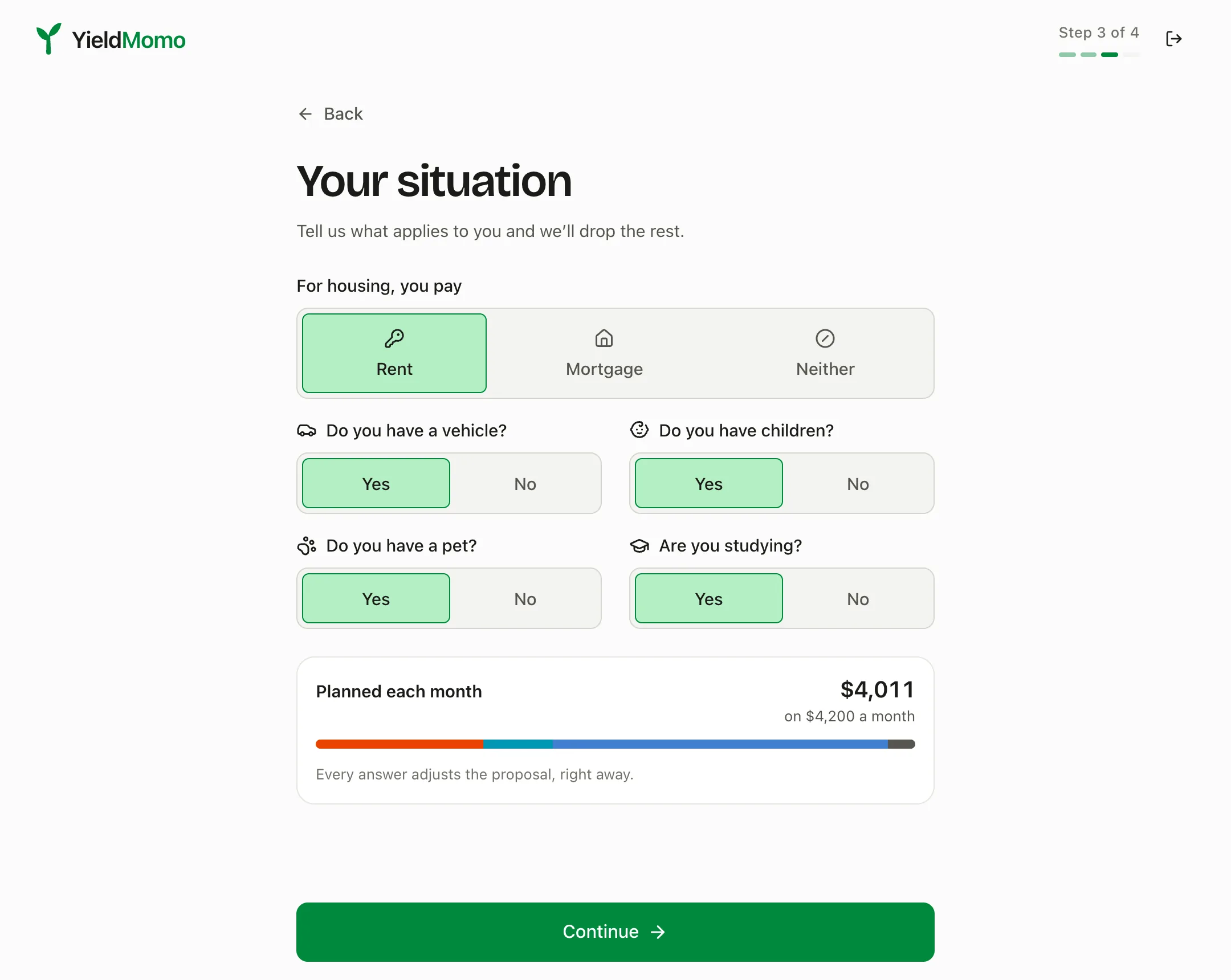
Step 3. Describe your situation
Five questions, nothing more: your housing (rent, mortgage or neither), a vehicle, children, a pet, studies. Each “No” sets the envelopes that don’t apply to you to zero, and the summary at the bottom updates with every answer.
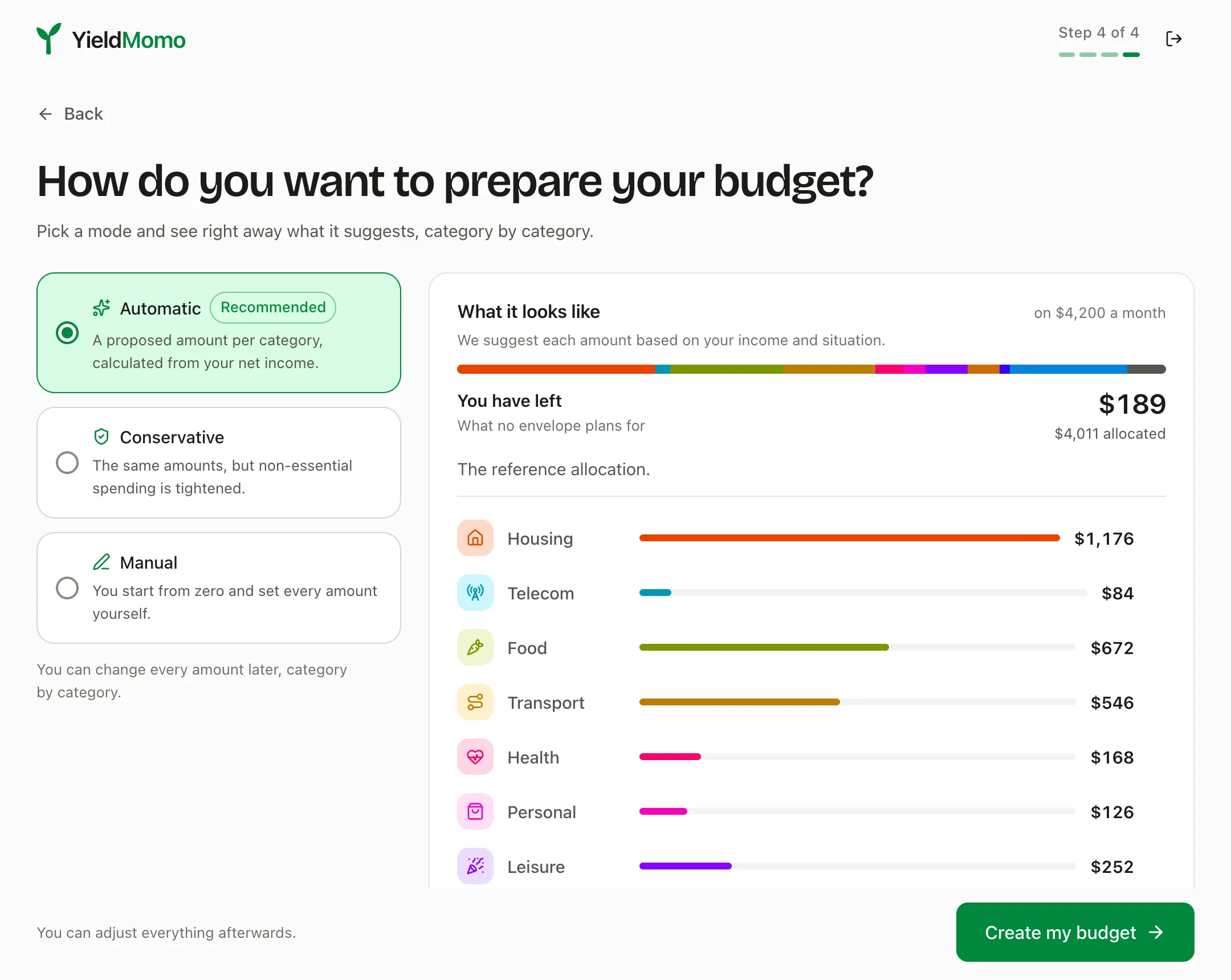
Step 4. Choose a mode, then create the budget
“Automatic” suggests an amount for each category, based on your income. “Conservative” runs the same calculation, with less for non-essential spending. “Manual” starts from zero. The preview shows the result group by group, along with what’s left unallocated. Then “Create my budget”.
- Without an income, only Manual mode is possible: we’d have nothing to calculate from.
- Offline, the button is greyed out: our server is what puts the budget together.
Good to know
The setup is required: without a budget, the app has nothing to show you. The only other way out is logging out.
We don’t keep your answers about your situation, only the amounts they produced. If you get a car later, open the Transport group and set an amount in “Car payment”, “Gas” or “Car insurance”.
The “Back” link, at the top of the screen, returns to the previous step without losing your choices.
Your 52 categories exist from the start, with their amount or at zero. You can change each amount later, in the Budget section.