Guide
Add an expense
The thing you’ll do most often. Four steps, and the expense goes into your month, in the right category.
- On the web
- 4 steps
- 1 min
Step 1. Click “+”
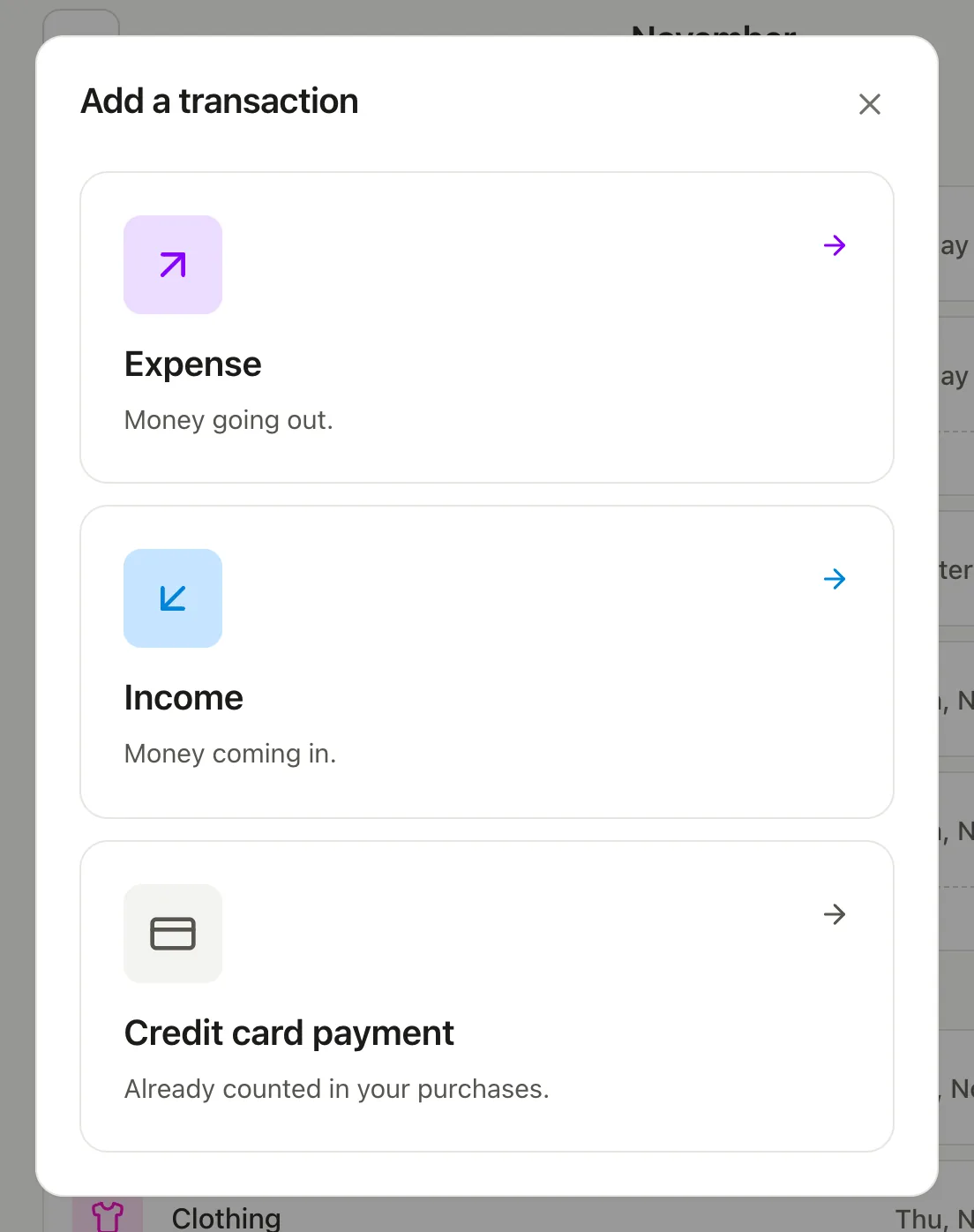
At the bottom right, on every page of the budget assistant. A window opens over the page, with three tiles: “Expense”, “Income” and “Credit card payment”. The Esc key closes it.
- Choose “Expense”. “Income” goes straight to the entry screen.
Step 2. By hand or by photo
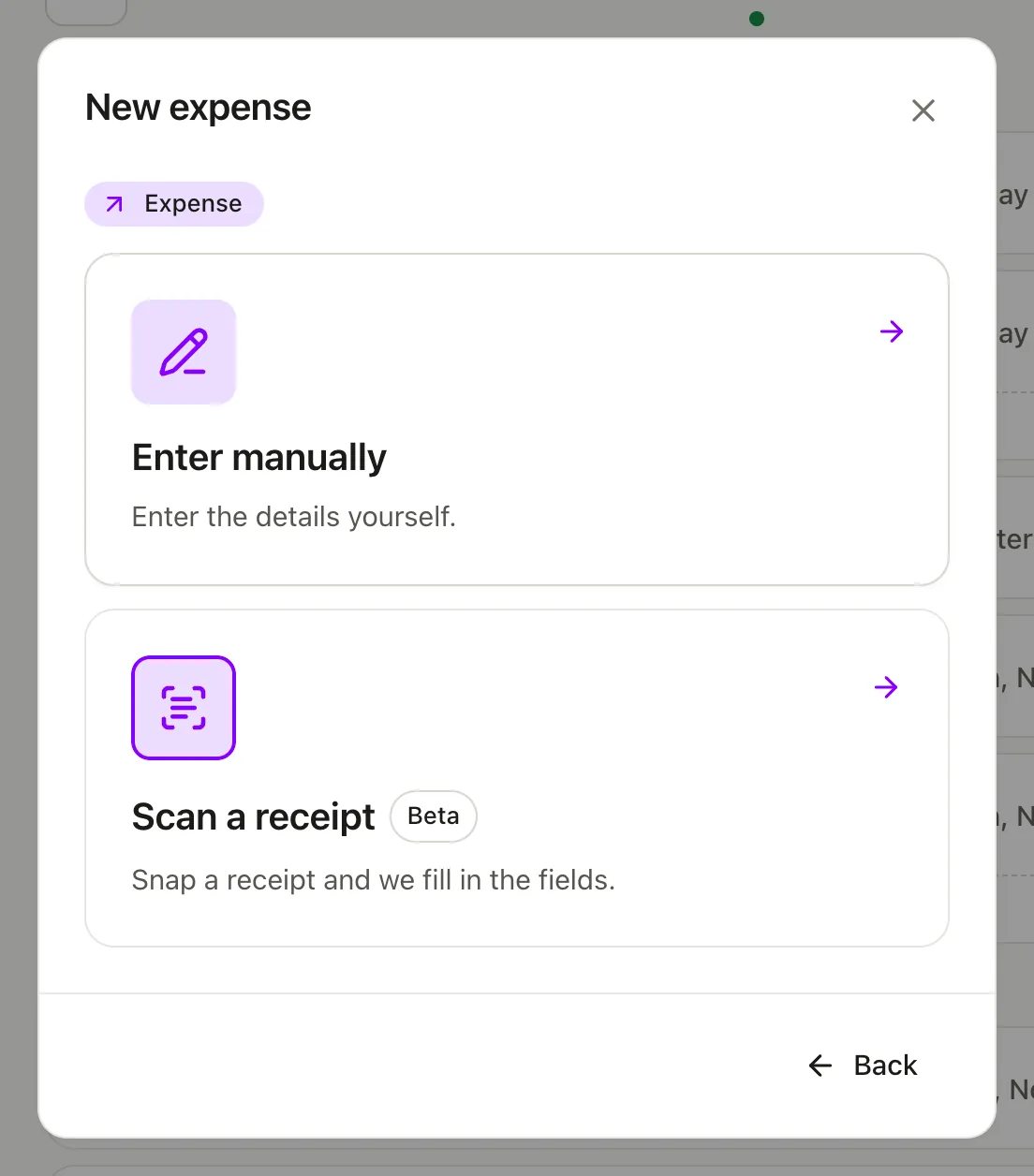
With “Enter manually”, you type everything. With “Scan a receipt”, you take a photo of the receipt and we fill in the amount, the date and the category, which you then check.
- Offline, both tiles are greyed out: adding needs a connection.
- On a free account, “Scan a receipt” has a padlock and leads to the subscription: scanning is reserved for YieldMomo MAX. “Enter manually” stays free.
Step 3. The amount, the date, the category, the note
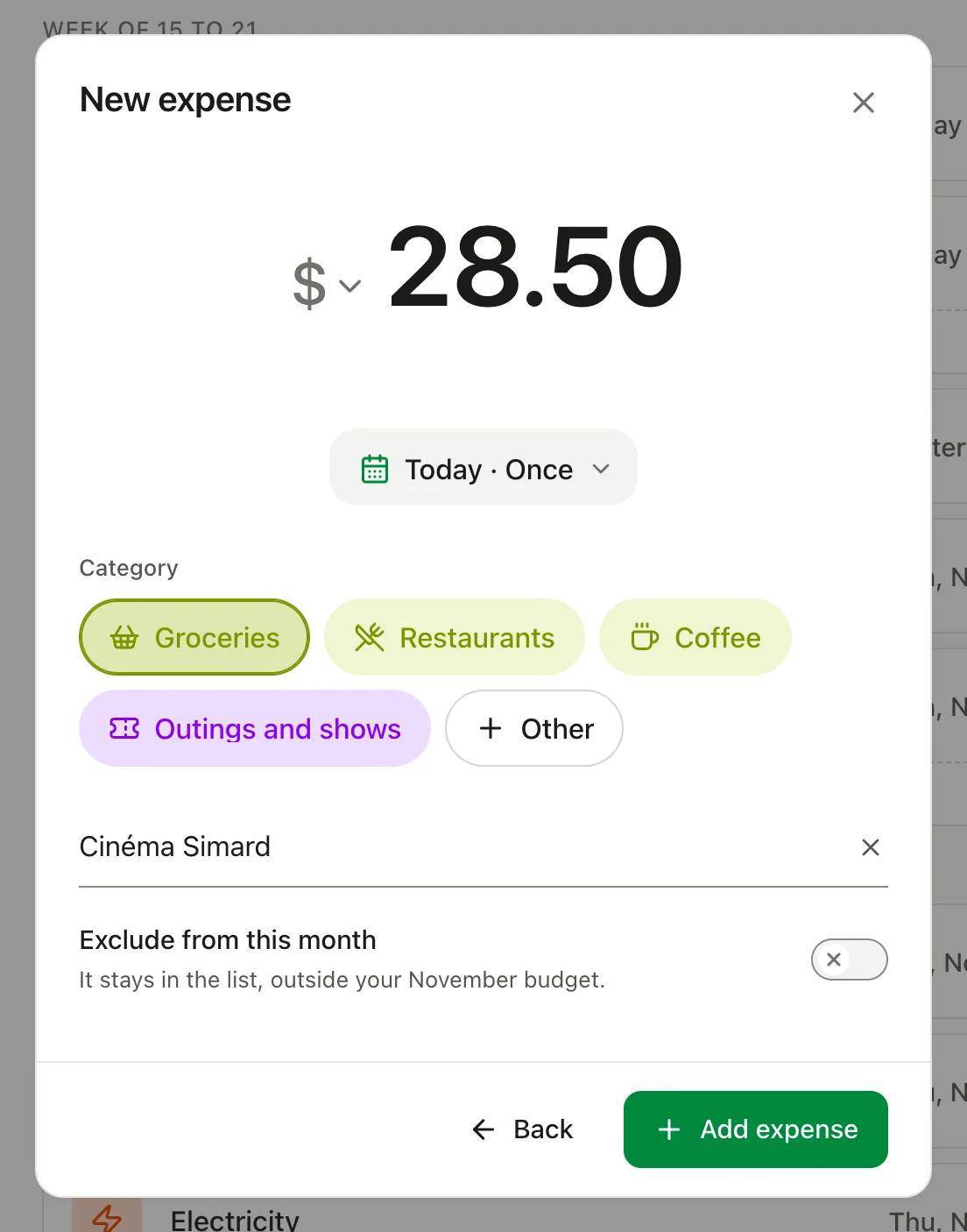
The amount first, in large type: the cursor is already there. A comma or a period separates the cents, up to $1,000,000. Below it, “Today · Once” opens the calendar and the frequency. Then pick one of the four suggested categories (your latest), or “Other” to see them all, by group or by search (“groceries”). The note is optional.
- Paid in another currency? The “$” next to the amount opens the list of currencies. Type the amount you paid: it’s converted at the rate of the expense’s day, and the original amount stays in the note.
- If your note looks like a card payment (“Visa payment”), a notice says so right below it, without blocking anything.
Step 4. Add it, and the row appears
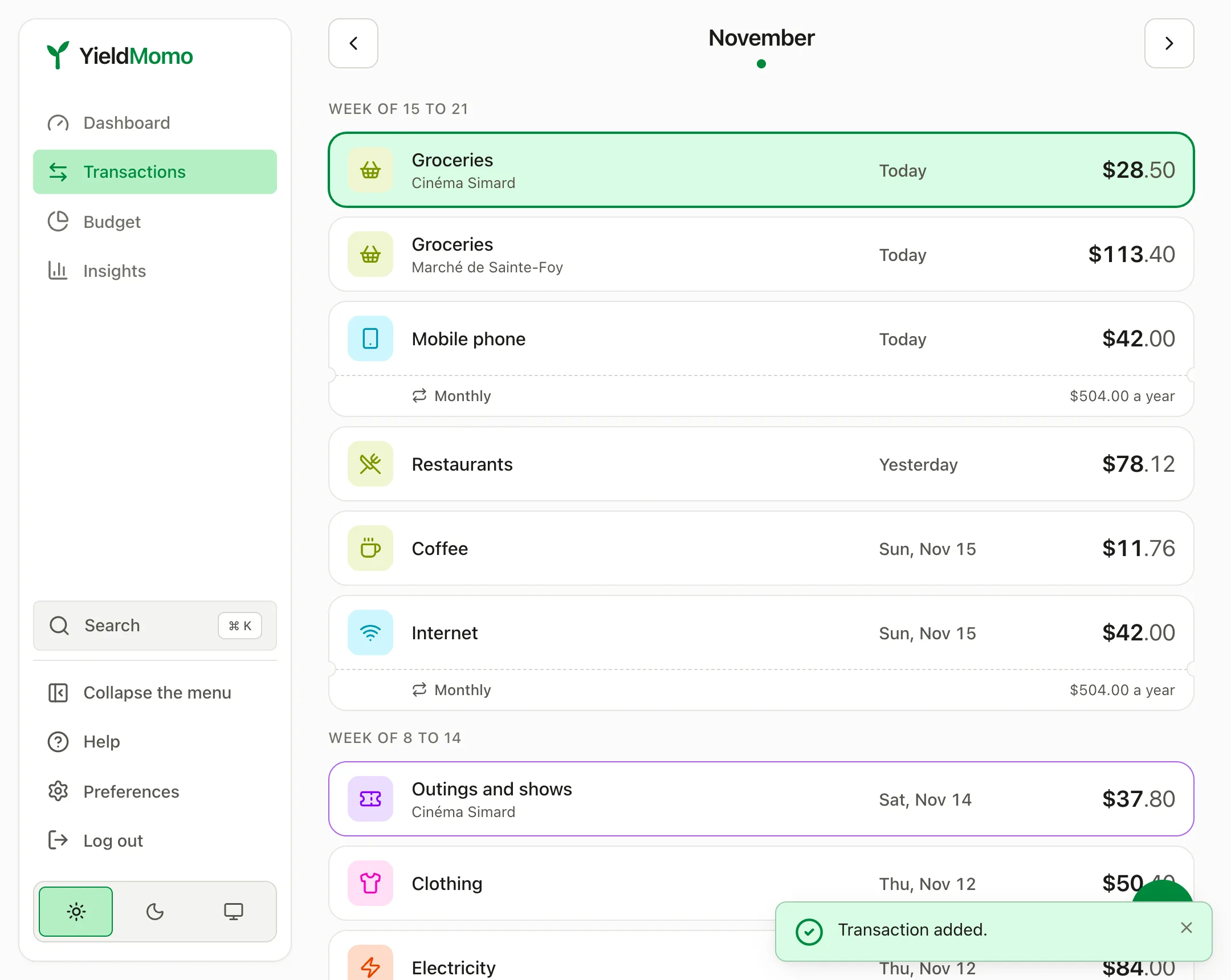
Click “Add expense”. The window closes, the message “Transaction added.” appears and, if you’re in Transactions, the list scrolls to your expense, outlined for a moment. The month’s total and the envelope involved update right away.
Good to know
Date it on the day you bought it rather than the day it shows on your statement. That’s what keeps the month accurate.
The “Add expense” button stays greyed out while the amount or the category is missing. A line above it says so. “Uncategorized” is in “Other”.
Picked the wrong category? Open the row and change it whenever you like.
If adding fails, the window stays open and what you entered is kept: just try again.
You don’t log a credit card payment: the purchases it pays off are already counted. The third tile explains why.