Guide
Scan a receipt
This scan is part of YieldMomo MAX. One photo, and the amount, the date and the category fill themselves in. You review, adjust and save. Nothing goes into your budget until you’ve checked it.
- On the web
- 3 steps
- 1 min
- MAX only
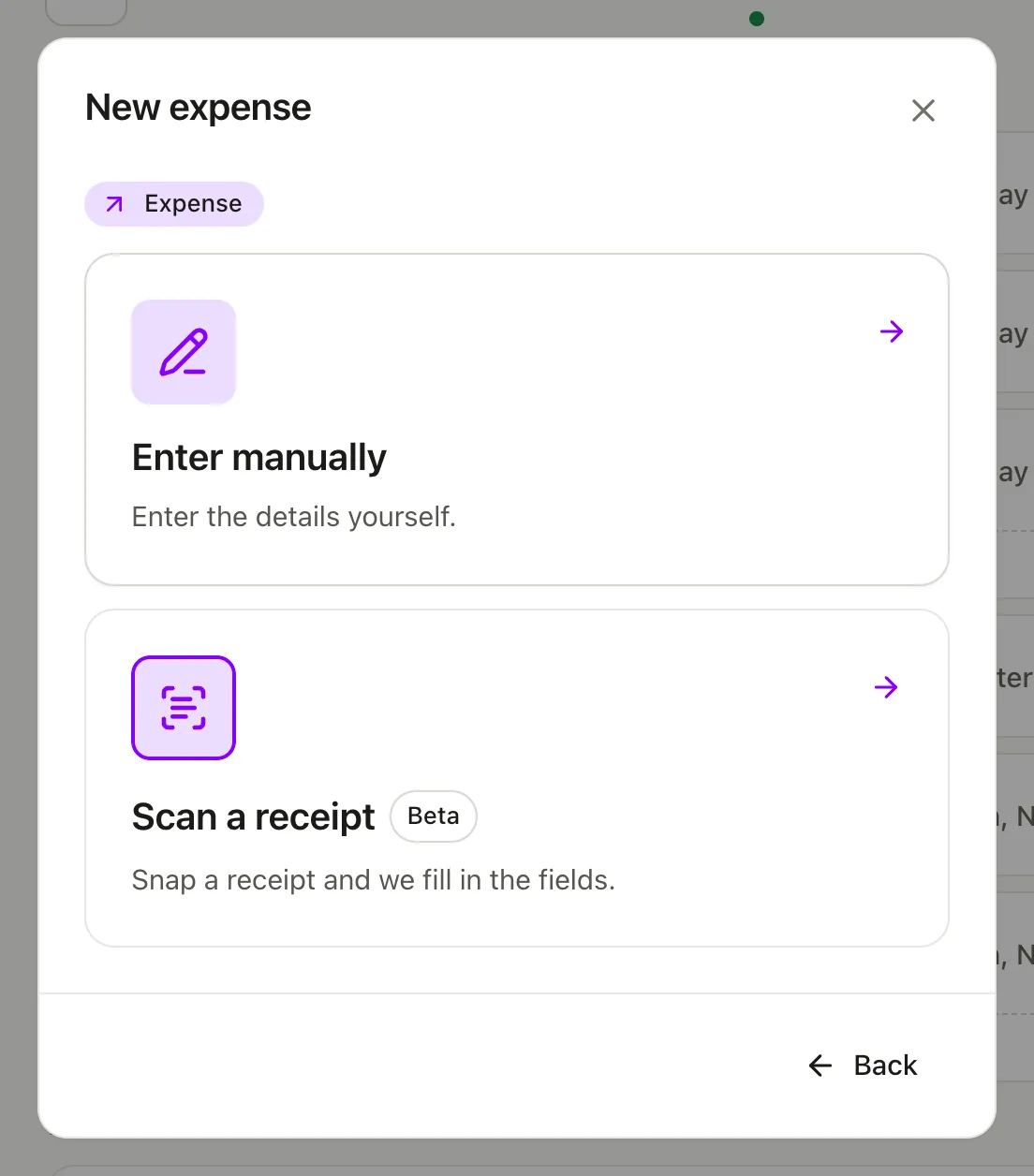
Step 1. Choose “Expense”, then “Scan a receipt”
Just like any other expense. On a computer, choose a photo (JPEG, PNG, WebP, HEIC, AVIF or TIFF). On a phone, the camera opens.
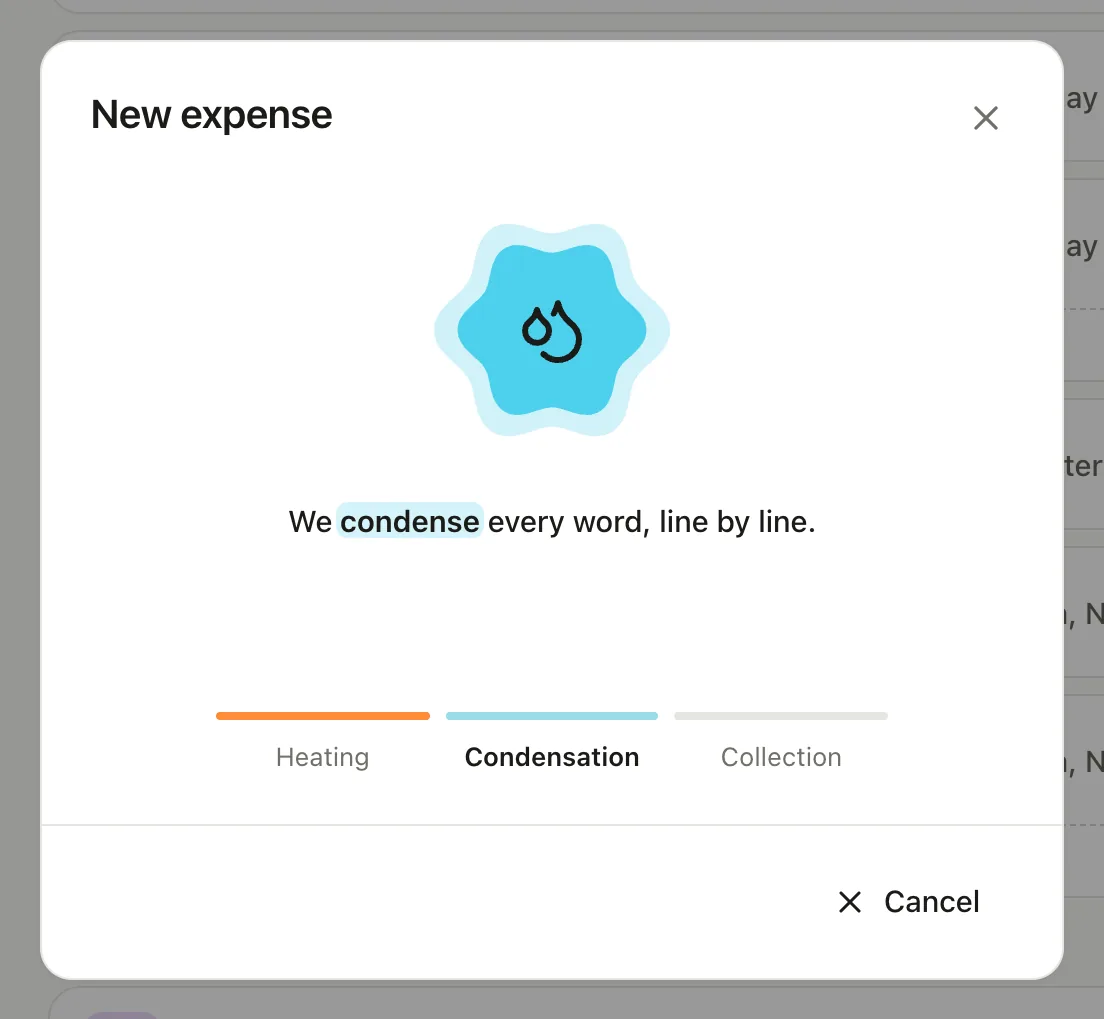
Step 2. Let us read it
Three stages show up, Heating, Condensation and Collection: we straighten the photo, read every word, then pick out the fields. A busy receipt takes about twenty seconds. “Cancel” takes you back to the choice at any time.
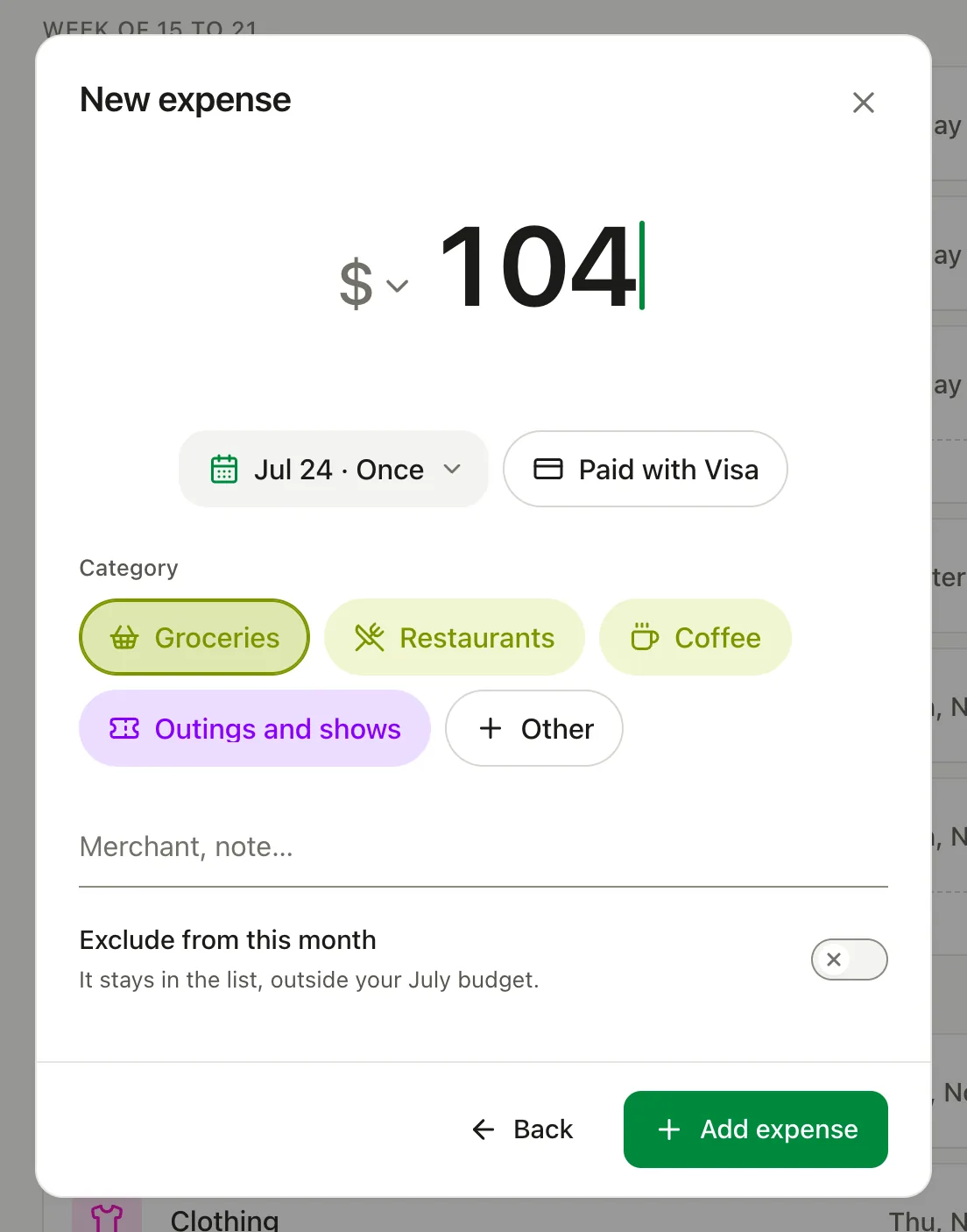
Step 3. Check, then add
The form opens already filled in: the total amount, the receipt’s date, and the category recognized from the merchant, if your budget has a matching one. The logo of the card you used shows as a hint. The fields stay editable. The note is empty, so you can write the store’s name there if you like.
If the scan doesn’t go through
- “The photo is blurry”: retake it holding your device still, or choose a sharper one.
- “No text found”: move closer so the receipt fills the screen, in good light.
- “No receipt recognized”: frame the whole receipt, from the store name down to the total.
- “Receipt partly read”: the amount or the date still needs filling in. “Continue” opens the form with what we read.
- “Reading took too long”: your photo isn’t the problem. Try again in a moment.
- “This image won’t open”: the file is damaged, too large, or in a format we can’t read. Choose another photo.
- If the scanning service stops responding, a message says so and you’re taken back to the choice.
- Except for a partly read receipt, “Enter it manually” is always offered.
Good to know
On a free account, the “Scan a receipt” tile has a padlock: a click opens the Subscription page. Once MAX is on, the tile arms itself. Entering it by hand stays free.
A large photo is shrunk on your device before it’s sent, so it goes out quickly. It isn’t cropped, and we don’t store it in your account: only the transaction stays.
We scan up to ten receipts per minute per account. Beyond that, wait a moment.
Scanning needs a connection and an available service. Otherwise, the tile is greyed out and says why.
A refund receipt, with a negative total, keeps “Add” greyed out until you correct the amount.