Guide
Exclude an expense from the month
An unusual purchase, a refund that isn’t really income: it stays in your list, but it no longer counts in the month. Nothing is deleted.
- On the web
- 3 steps
- 1 min
Step 1. Open the transaction
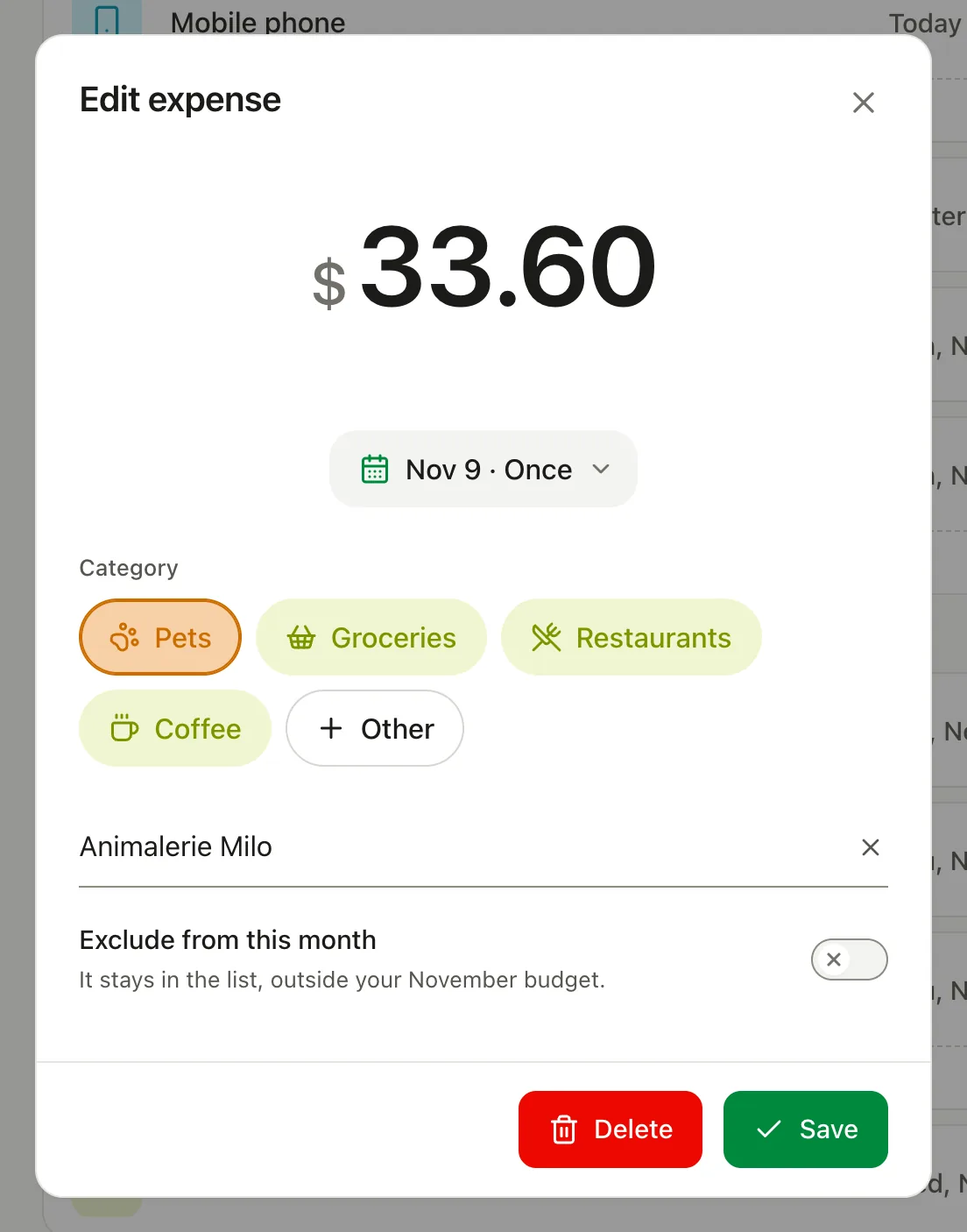
Click its row, in Transactions or in a category’s details in Budget. The “Edit transaction” window opens.
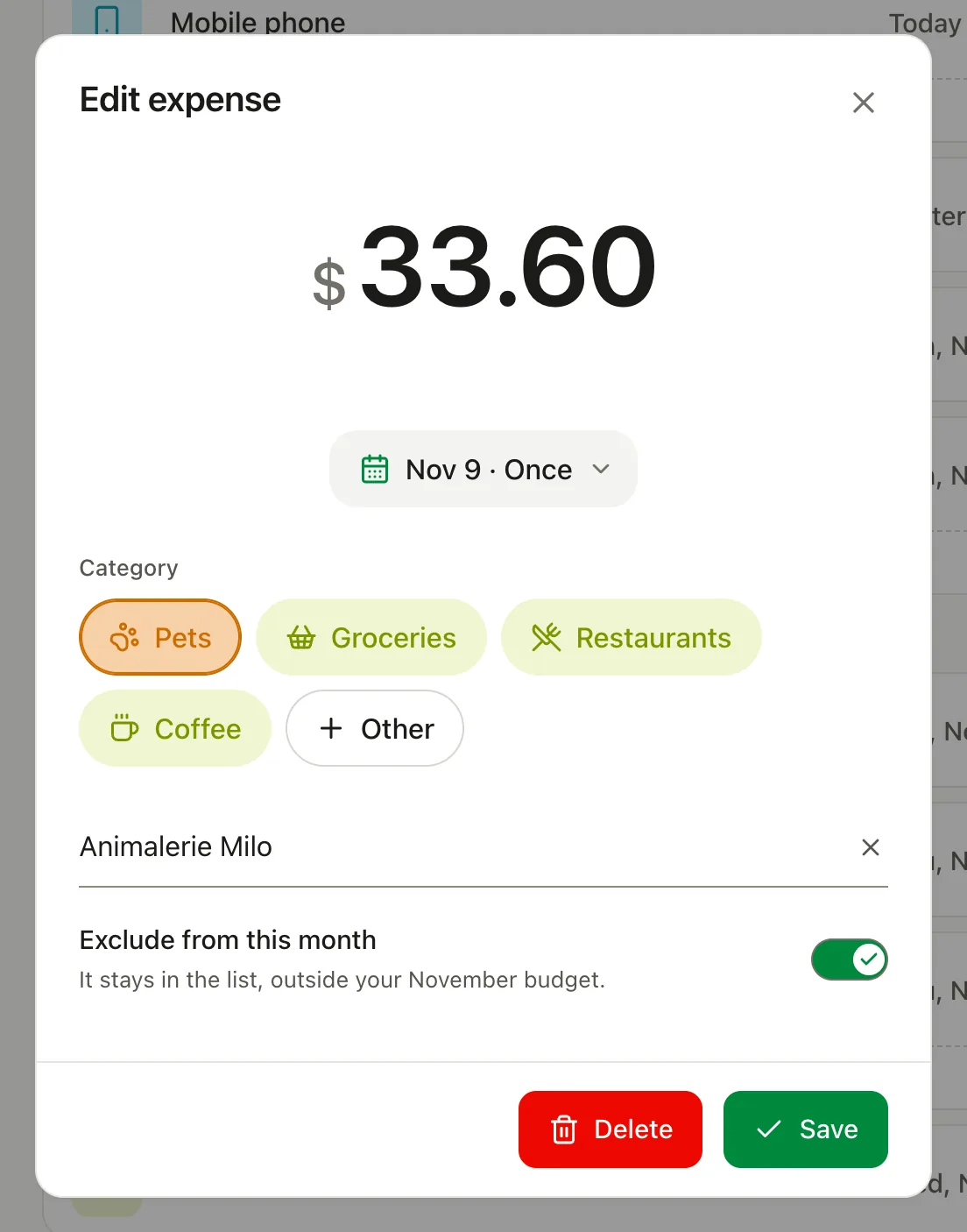
Step 2. Turn on “Exclude from this month”, then save
The switch is below the note. Its sentence tells you what will happen: the transaction stays in the list, outside the month’s budget. For a transaction that repeats, only that month is affected. Then “Save”.
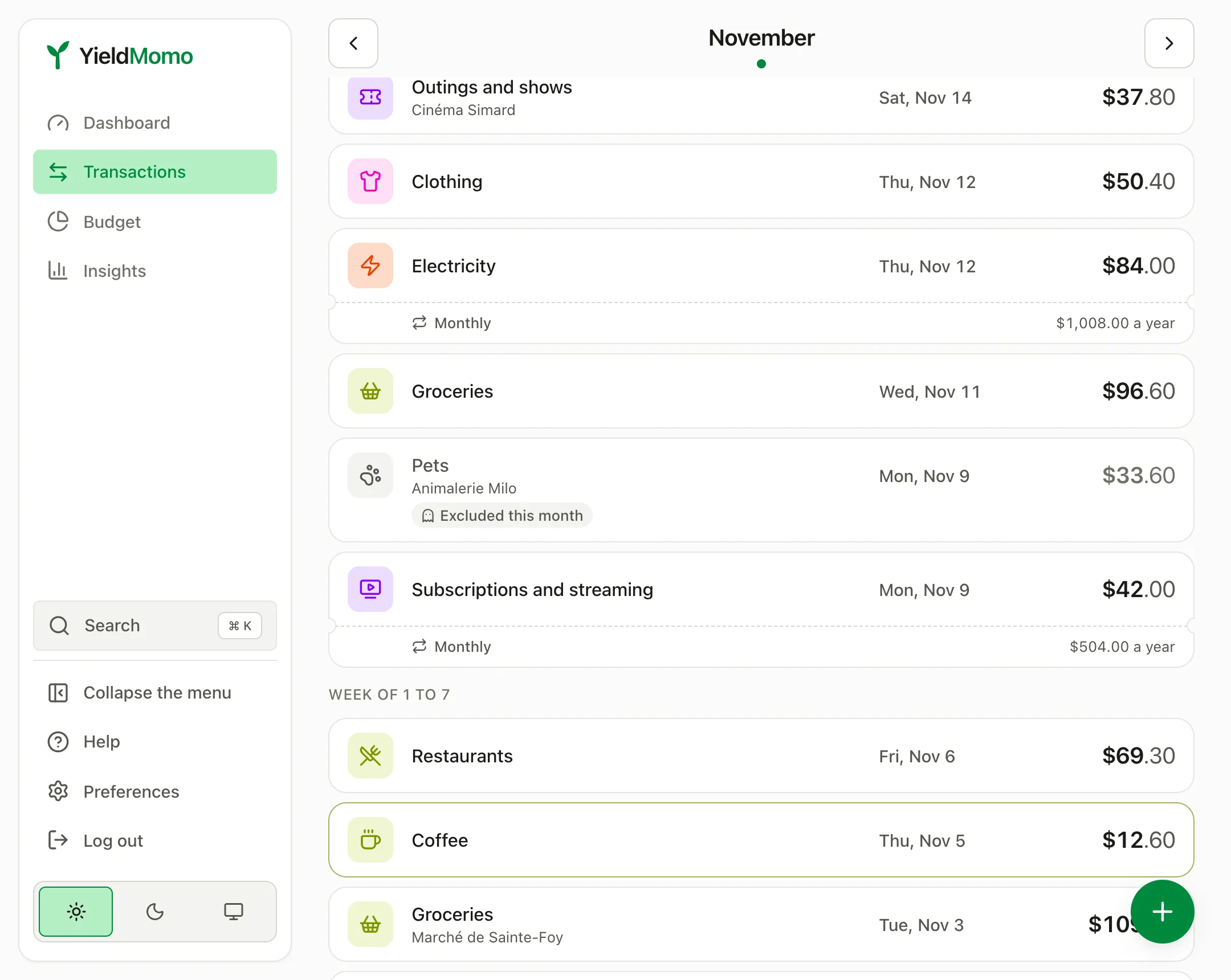
Step 3. The row stays in the list
It keeps its place, its amount turns grey and the “Excluded this month” label appears. The month’s total, the envelopes, the curve, the verdict and the insights no longer count it, and neither do alert emails.
To bring it back into the month
- Open the row again, turn the switch off, then “Save”. Everything recalculates.
Good to know
Excluding and deleting are two different things. Excluding keeps the row and leaves it out of a month’s calculations. Deleting removes the transaction, along with its whole series for a monthly transaction.
For a monthly transaction, open the row for the month you want to exclude: that’s the month affected. The other months still count.
The transaction stays visible on purpose: you bring it back into the month by reopening its row, in Transactions or in its category’s details.
In the Excel workbook, the “Counts in the month” column says “No” for an excluded row.
Don’t use exclusion for a credit card payment: don’t log it at all, since its purchases are already counted.