Guide
Adjust an envelope
Your rent goes up, you drop a subscription: your budget follows. You change a planned amount in three steps, and it applies to every month.
- On the web
- 3 steps
- 1 min
Step 1. Open the group
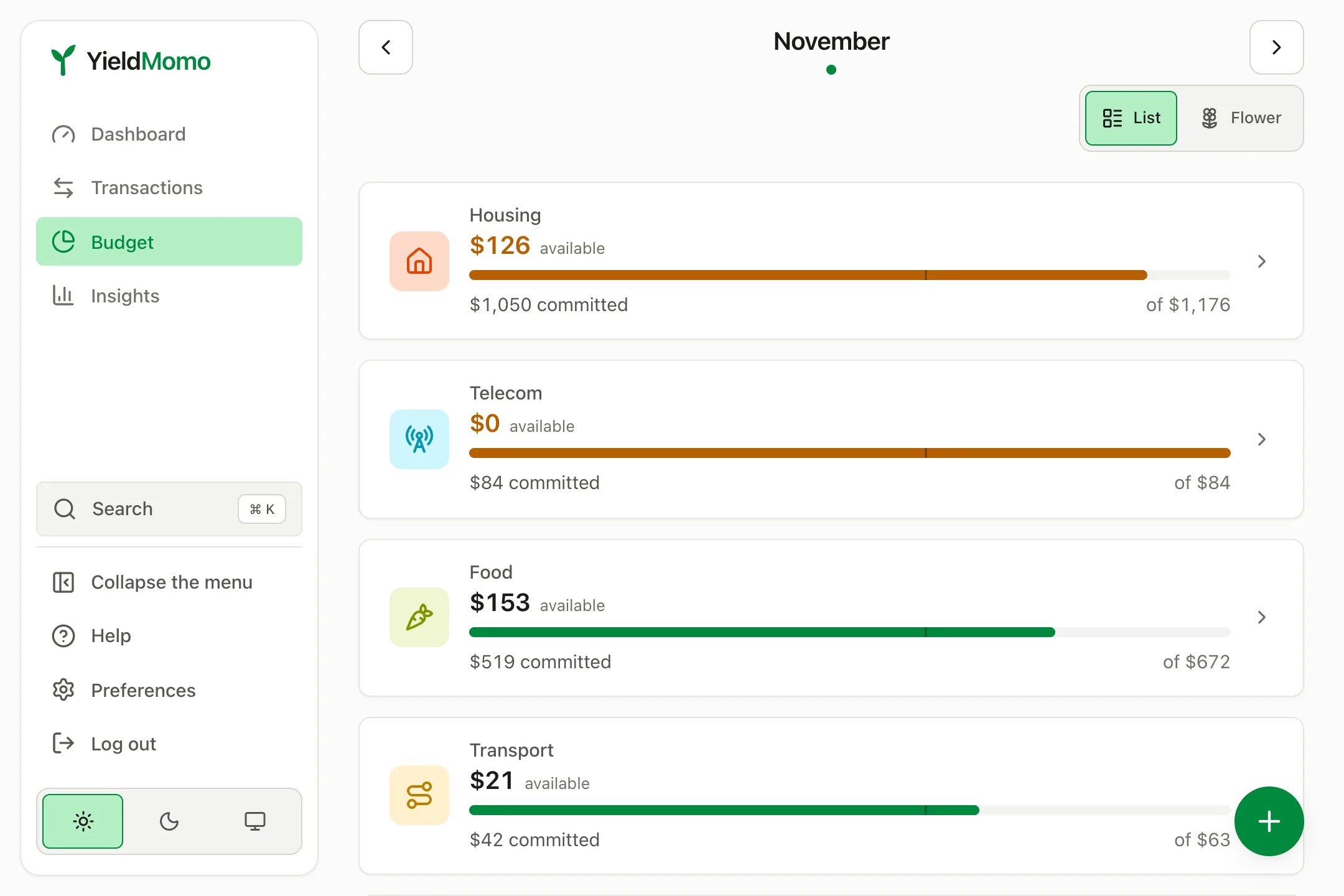
In Budget, click the group’s card: Housing, Food, Transport, and so on. You see its categories, each with its own card.
Step 2. Click the pencil
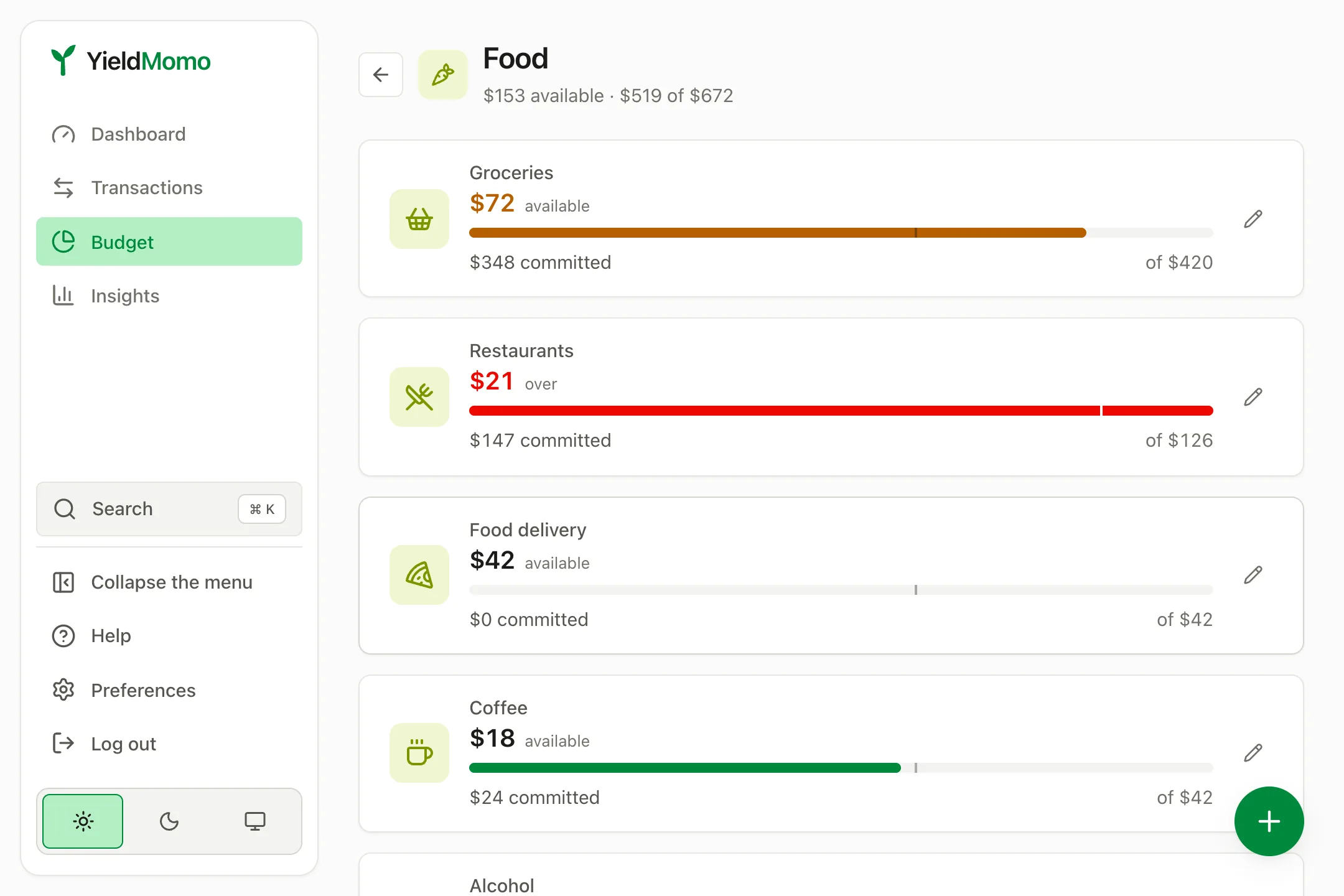
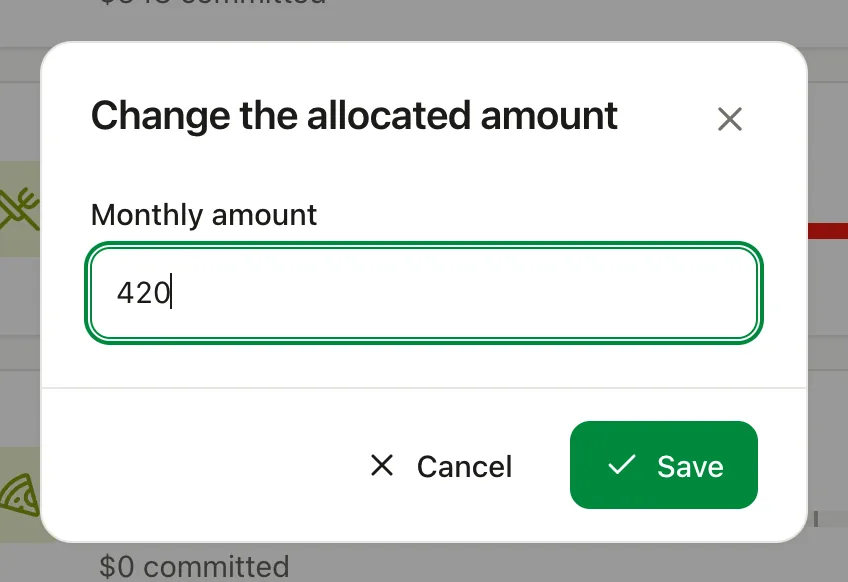
On the card of the category you want to change. “Change the allocated amount” opens, with the current amount. For income, it’s “Change the expected amount”.
Step 3. Enter the new amount, then save
The monthly amount, then “Save”. The card changes right away. An empty amount counts as zero. If the category has no spending this month, the card will say “To plan”; otherwise, what’s already spent shows as over.
Good to know
The new amount applies to every month, past ones included. A completed month is shown with today’s amount.
A group’s amount is the sum of its categories: you can’t change it in one go.
An income goal doesn’t reduce your spending budget: income is tracked separately.
Offline, the pencil disappears. It comes back with the connection.
If saving fails, we tell you and reload your budget.