Budget
Your envelopes, one planned amount per category. You see what’s committed and what’s still available, and you adjust an amount when life changes.
- On the web
- 8 things to do
- Free and MAX
The screen
The list
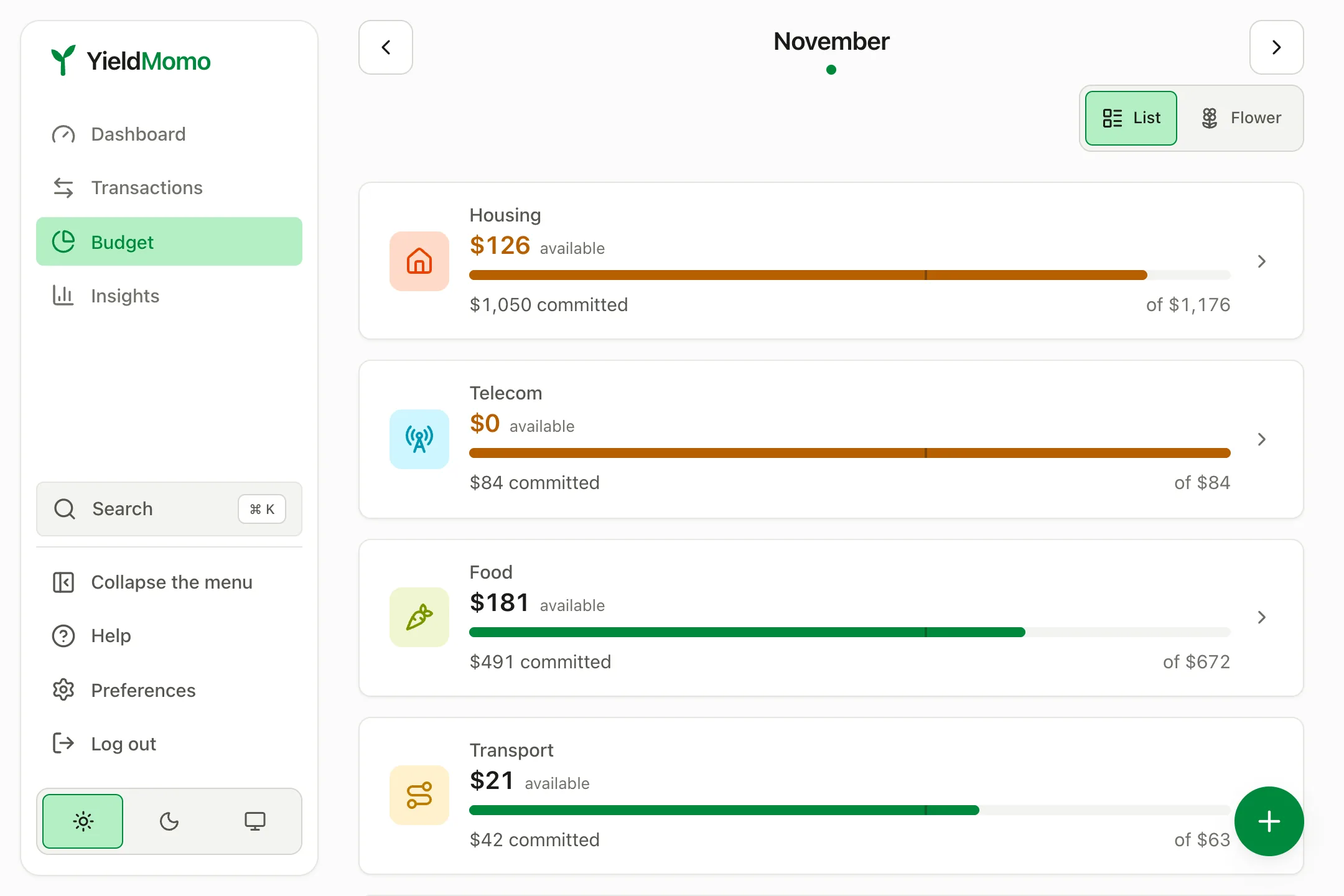
The month navigator. Your budget is the same every month, but your spending isn’t. The month on screen decides what the bars show. The navigator disappears in a group’s details, which keep the month you picked.
List or Flower. Two ways to see the same envelopes. The list shows one card per group; the flower, for YieldMomo MAX subscribers, draws them as petals. On a free account, “Flower” shows a preview.
A group card. One card per group, from Housing to Other; groups with an amount or an expense come first. The name, the big number (“$150 available” or “$90 over”), the bar, then what’s committed and the planned amount.
The mark on the bar. It shows where the month stands. If the bar goes past it, you’re spending faster than the month is passing.
The flower (YieldMomo MAX)
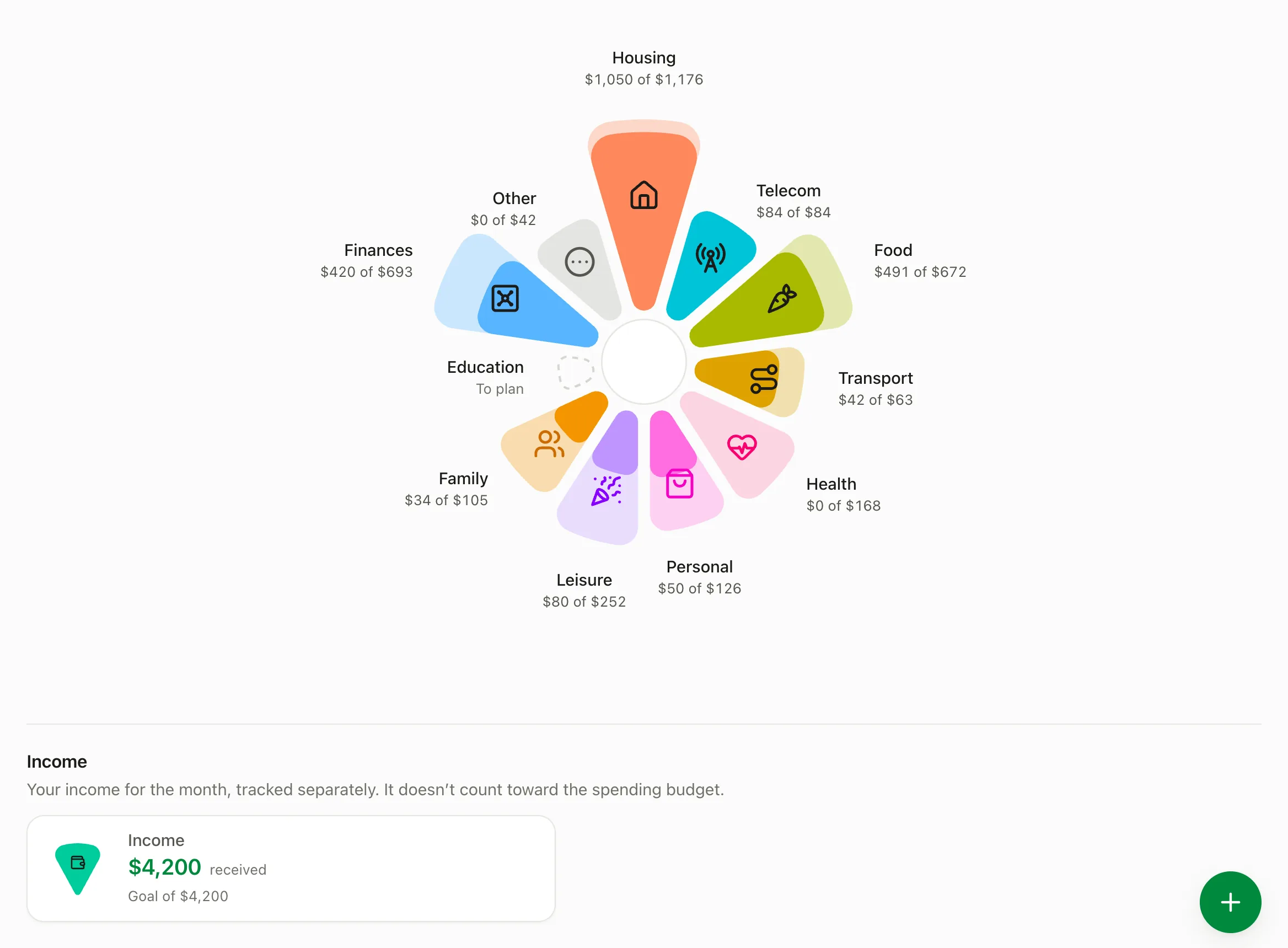
A petal. One expense group, always in the same place from one month to the next. The pale outline is the planned amount, the color what’s spent. A dotted petal has nothing planned.
The names around it. Each group at the tip of its petal, with what it holds: “$713 of $980”, “$112 over”, “To plan”. On a narrow screen, they move to a legend below the flower.
The Income card. Your income, tracked separately, with the same petal. It opens the flower of your nine income categories.
What you can do
Switch to the flower
Click “Flower”, above the groups. With YieldMomo MAX, it’s where you land: every visit to Budget opens on the flower. “List” brings the cards back for the rest of the visit.
Open a group from the flower
Click a petal, or its name. The flower folds up, then the group’s flower opens onto its categories, with one card per category below. The card opens the transactions; its pencil changes the planned amount.
Open a group
Click a card. You see the group’s categories, each with its own card. A subtitle sums up the group: “$150 available · $450 of $600”.
Open a category
In a group, click a category card. You see the month’s transactions in that category, from newest to oldest. Click one to edit it.
Change a planned amount
In a group, the pencil on a category card opens “Change the allocated amount”. Enter the new monthly amount, then “Save”. The change applies to every month, past and future.
See the guideSet an income goal
In the Income group, the pencil opens “Change the expected amount”. The card then shows what you’ve received against the goal. It stays amber until you reach the goal, then turns green.
Look at an upcoming month
Move ahead a month: each card shows what’s planned. The planned amount, an empty bar, and what your monthly transactions already commit, or “Nothing planned”.
Start a group over from zero
Set the planned amount of each of its categories to 0. In a month with no spending in this group, the card shows “To plan” and moves to the bottom of the list. In a month with spending, all of it counts as over, in red.
Good to know
A wavy edge means over budget. The further an envelope goes over, the stronger the waves, and a dotted line shows where the planned amount stopped. Spending with no planned amount is wavy too. Income never gets waves: receiving more than your goal isn’t a problem.
The flower is for YieldMomo MAX. On a free account, “Flower” shows a preview with made-up amounts, and “Discover YieldMomo MAX” leads to the subscription. Your amounts stay in the list, which is free.
A planned amount applies to every month. There’s only one budget, the same every month. When you change an amount, October and March change together, and a past month shows the new amount when you look back at it. We don’t keep a history of planned amounts: that’s what keeps the budget simple.
“Committed” counts the whole month. Rent set up as a monthly transaction and dated the 28th is committed from the 1st. “Available” is the planned amount minus everything committed, not just what has already gone out. It’s more cautious, and that’s on purpose.
Colours follow a threshold. Under 80% of its amount, an envelope’s bar is green and its number stays neutral. Between 80% and 100%, it turns amber. Beyond that, it turns red, with the amount over. For income, it works the other way around: the card stays amber until the goal is reached, then turns green.
Income is tracked separately. The “Income” block, below expenses, compares what you’ve received with your goals. It’s never added to your spending budget.
Categories are fixed. The catalogue has 52 categories in 12 groups, from rent to your morning coffee. You can’t create or delete any: a category you don’t use stays at 0 and doesn’t get in the way. If an expense doesn’t fit anywhere, put it in “Other expense”, in the Other group. An “Uncategorized” expense stays in your transactions, but doesn’t appear in any envelope.
An email when an envelope nears its limit. Twice a day, around 8 a.m. and 6 p.m. Eastern time, we check your envelopes for the current month. One that reaches 80% of its amount gets you an email, once per month, even if it goes over later. If several envelopes cross the line between two checks, they arrive together in one email. An envelope at 0 triggers it from its first expense. For now, you can’t turn this email off.
Something wrong?
You’re on the flower. Choose “List”, above the groups (on a phone, the list icon): the cards and their bars come back. The flower returns on your next visit to Budget.
That’s not possible today: a planned amount applies to every month. For an unusual month, you can exclude the expense that throws things off from the month, or adjust the amount and change it back the following month.
There are two possible reasons. You’re on the list of groups: the pencil is on the category cards, inside a group. Or you’re offline: you can read the budget, but you can’t change it until the connection is back.
There are two likely causes. A monthly transaction dated later in the month already counts: open the category, and the list shows what’s committed, with the date of each occurrence. Or its planned amount is 0: any expense then counts as over.
The mark only appears on the current month: a past month is over, and an upcoming month hasn’t started. It also disappears on an envelope that’s already over budget or “To plan”, where there’s nothing left to measure.