Preferences
Your name and photo, your language, your theme, and a copy of your data in Excel. Your name, photo, language and theme follow your account to your other devices.
- On the web
- 6 things to do
- Free
The screen
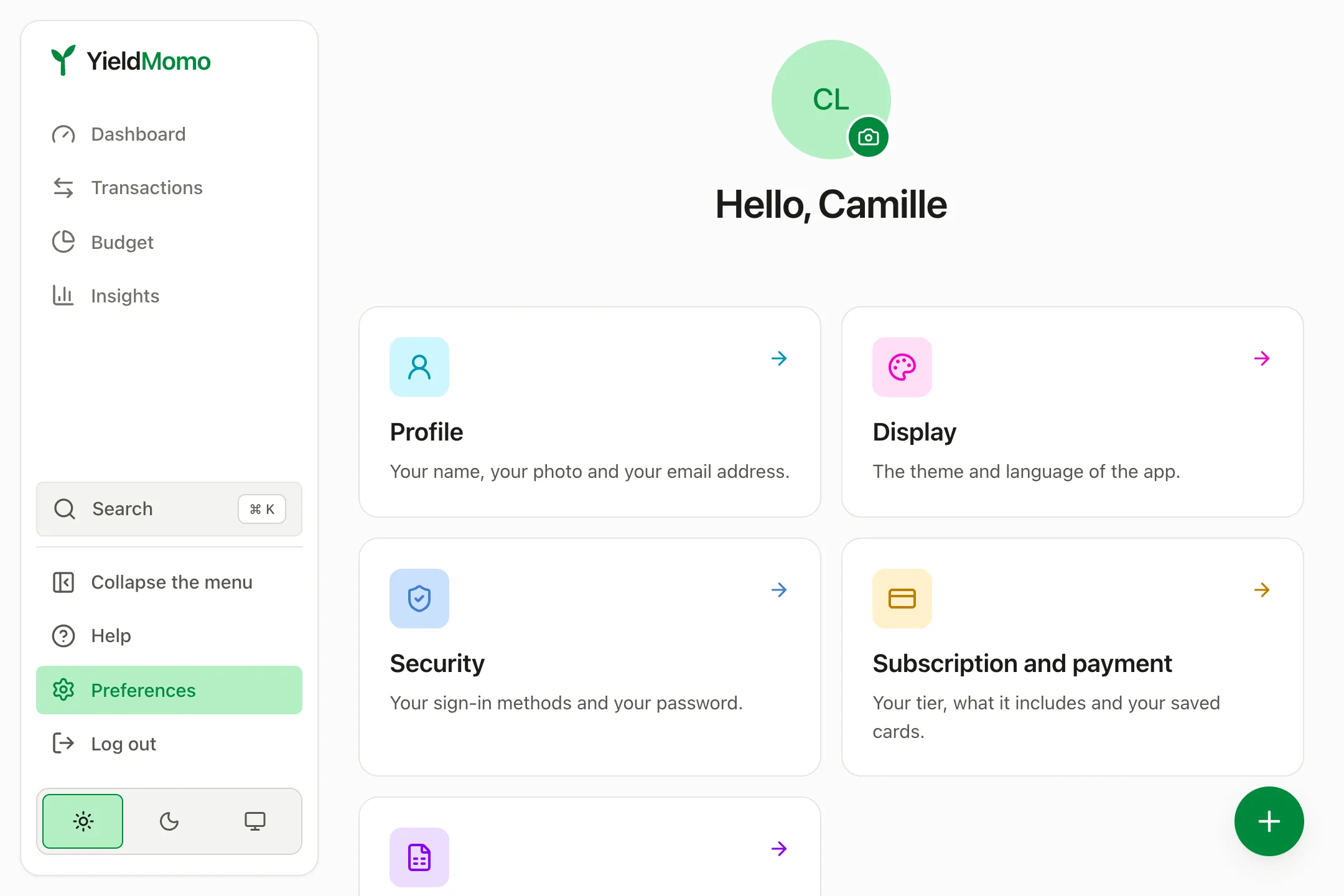
The “Preferences” link. At the bottom of the side menu, or the gear icon in the top bar on a small screen.
Your photo and the greeting. The camera icon on the avatar changes your photo. Below it, “Hello” or “Good evening”, followed by your first name.
The five tiles. Profile, Display, Security, Subscription and payment, Data. Each one opens its page; the arrow to the left of the title takes you back to preferences.
The theme. A light, dark or automatic selector, at the bottom of the menu. On a small screen, it’s a button in the top bar. The same setting also lives in Display.
What you can do
Open preferences
The “Preferences” link, at the bottom of the side menu, or the gear in the top bar on a small screen.
Change your name
Profile › Personal information. Enter your full name, then “Save”. It’s the name the app greets you by.
Change your photo
The camera icon on your avatar, at the top of the main preferences page or in Profile. An image of 5 MB at most (JPEG, PNG, WebP, HEIC or AVIF). We crop it to a square, from the centre: there’s no cropping tool. “Remove the photo” brings back your initials.
Choose the language
Display › Language: “Device”, “Français” or “English”. “Device” lets each device decide. Your choice follows your account and also applies to our emails.
Choose the theme
Light, dark or automatic, which follows your device’s setting. Use the selector in the side menu, or Display › Appearance. The theme follows your account, so your phone and your computer stay in sync.
Export your data to Excel
Data › Excel workbook › “Export to Excel”. Choose the period, then get a workbook with three sheets: Summary, Transactions, Budget.
See the guide
Good to know
The public site doesn’t change your preferences. The free tools and the site’s pages keep the last theme used on this device, and take the language from the address (“/en/” for English). A theme picked in the site footer doesn’t change your account. Your account settings take over as soon as you enter the budget assistant.
Offline, you can see your settings but not change them. Language and theme are greyed out, because we save them to your account. On a computer, “Unavailable offline” shows when you hover over them; on iPhone, the account sheet shows it below the theme. They come back with the connection.
Export isn’t limited to MAX. You should always be able to take your data with you, whatever your tier. The workbook holds your amounts and notes, with no password: keep it somewhere safe.
The workbook keeps its formulas. The Summary sheet adds up the Transactions sheet with real formulas. If you correct an amount in the file, the summary updates.
Something wrong?
We crop the image to a square, from its centre. Choose a photo with your face in the middle, or crop it first in your photo library.
With “Device”, the app follows the language of your phone or browser: English if it starts with “en”, French otherwise. Choose “Français” or “English” to set a language.
Both read your account when they load and when you come back to the app. Reload the page, or come back to the app, and they’ll match.
A workbook holds 10,000 rows at most. Choose a shorter period with “Custom”, from one month to another.